Everything you need. Nothing you don’t.
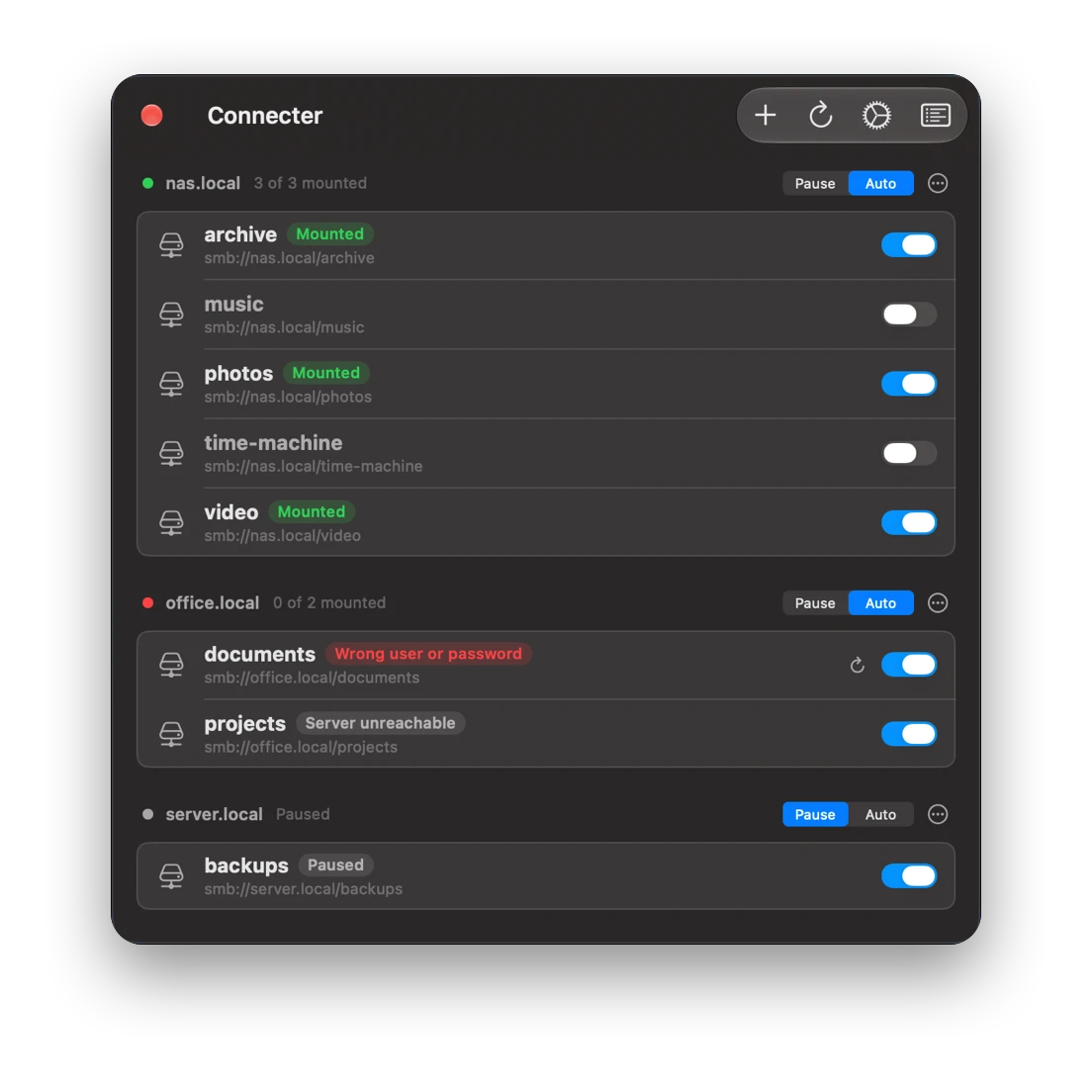
Connecter makes sure your network folders are where you expect them, without ever opening “Connect to Server” again.
Automatic mounting
Connects your shares at login and brings them back after sleep, network changes and dropouts.
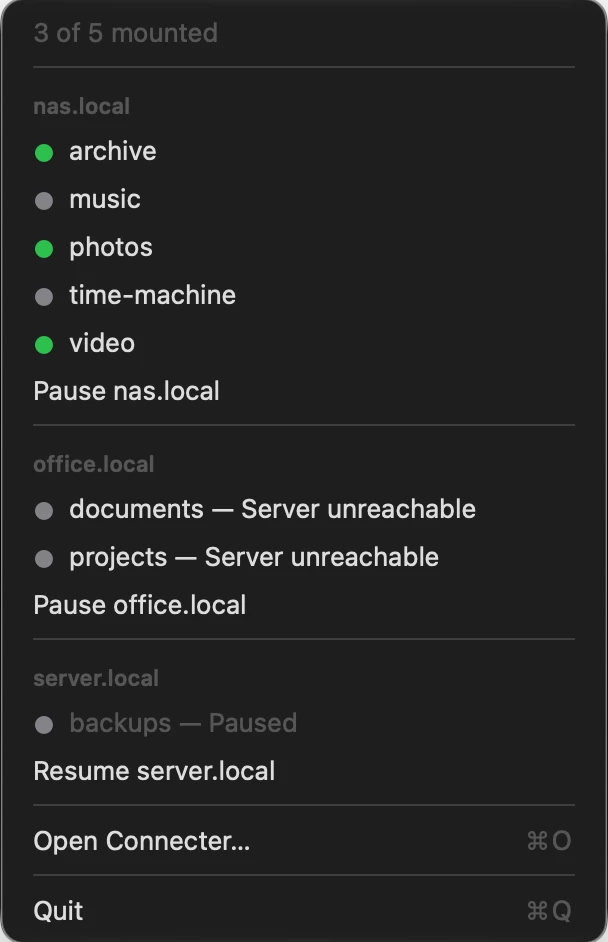
Status at a glance
The menu bar icon only speaks up when something needs your attention.
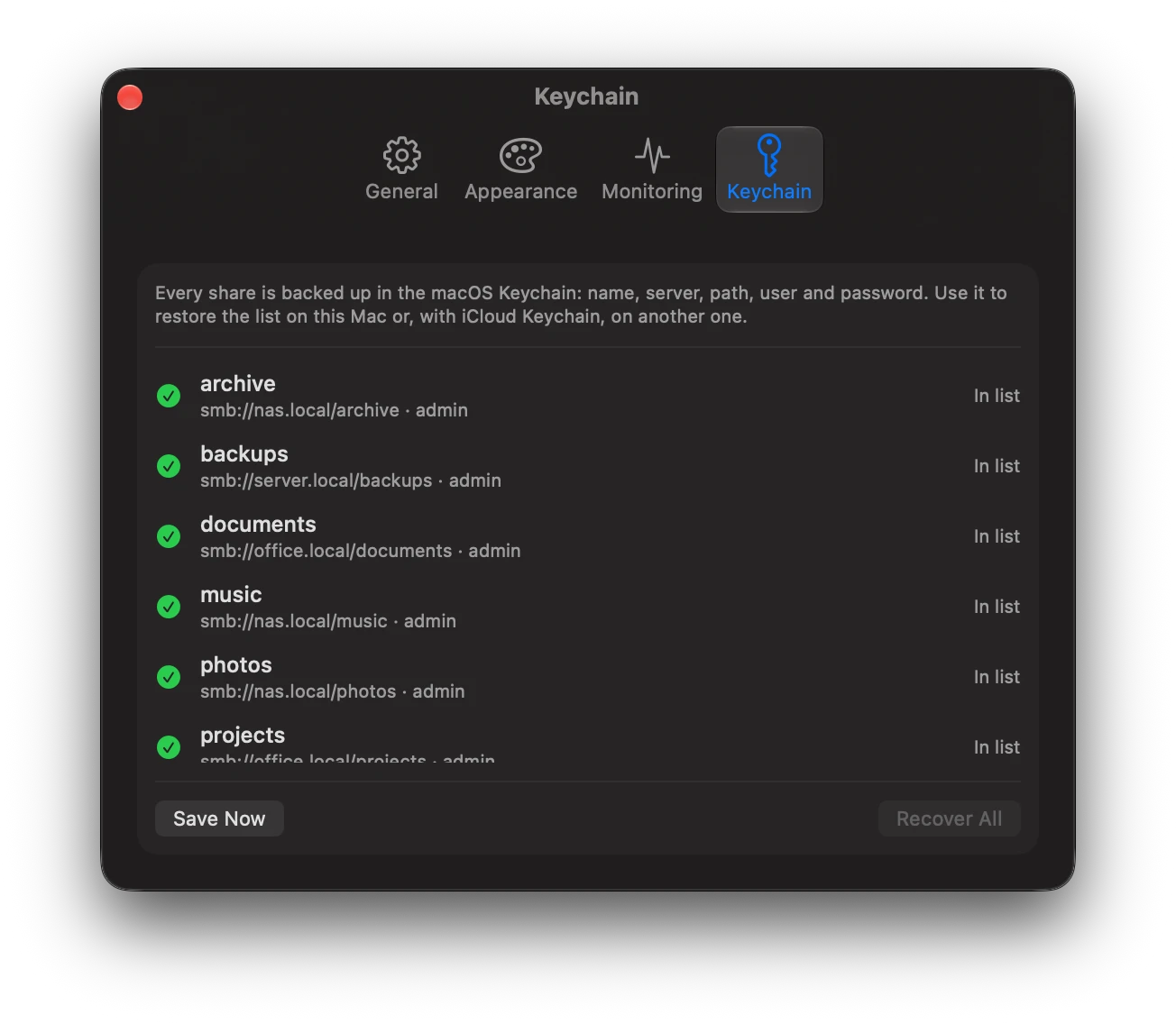
Passwords in the Keychain
Credentials are stored only in the macOS Keychain, never on disk.
Smart retries
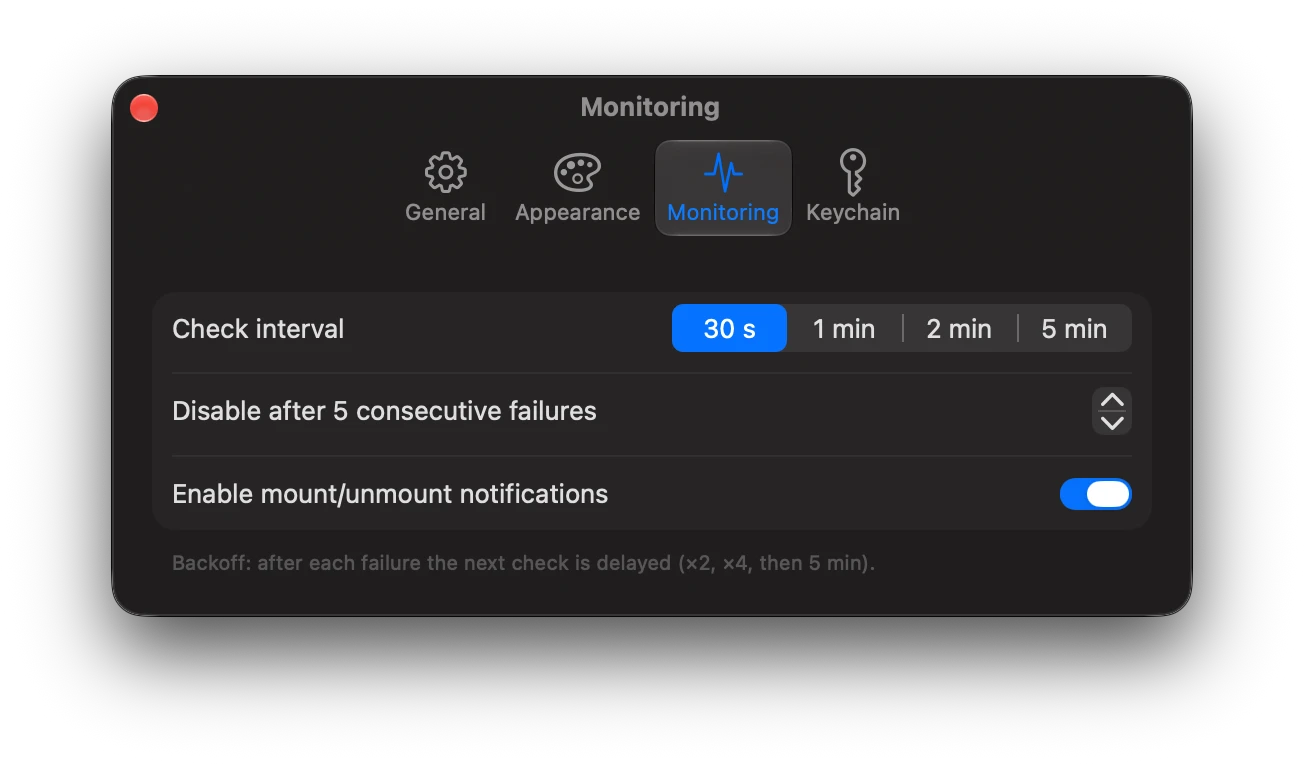
Progressive back-off between attempts, and an automatic pause while you’re offline.
Activity log
A filterable history of mounts, disconnections and errors.
Native and lightweight
Built with SwiftUI, with no third-party dependencies, inside the App Sandbox. It barely touches your CPU or disk, even while it keeps watch.
Works over VPN
Give each server its other addresses, and Connecter finds it both on your local network and over a VPN.
Organized by server
Shares are grouped by the machine they live on, so you can see and manage everything on each server at a glance.
Right at home on your Mac.
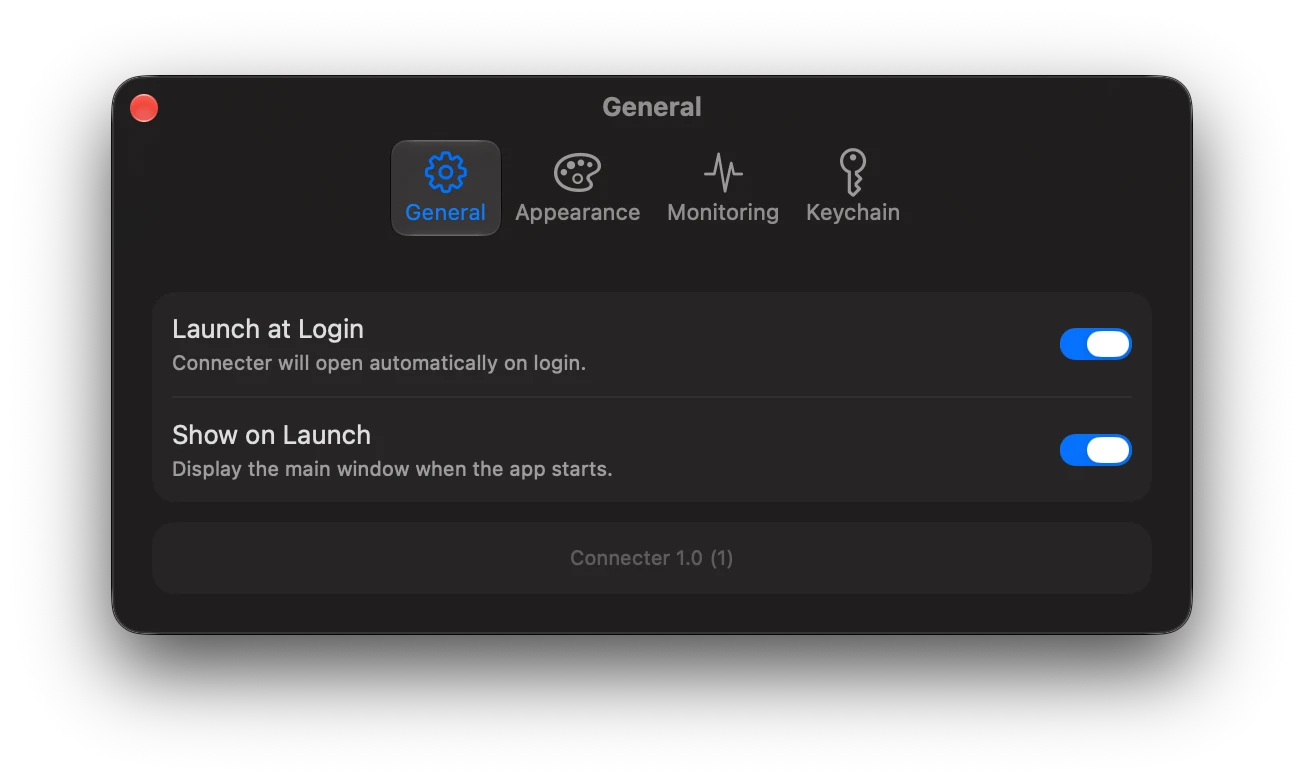
Native to macOS Tahoe. Everything is configured from one simple settings window.
Set it up once. Forget about it.
Three steps and your network drives stop being a problem.
Add your shares
Pick the shares you already have mounted in Finder, or enter the SMB address of each shared folder on your NAS or server.
Save your credentials
Your username and password stay protected in the macOS Keychain.
Leave it in the menu bar
Connecter mounts, watches and reconnects in the background. It only bothers you if something goes wrong.
Privacy
Connecter works on your Mac and with your network. Your data stays yours.
- No data collection. Connecter does not collect, send or share any personal or usage data with the developer or with third parties.
- Credentials in the Keychain. Passwords are stored exclusively in the macOS Keychain and are never written to disk in plain text.
- Local data. Settings and the activity log are kept only on your Mac, and uninstalling the app removes them.
- App Sandbox. The app runs isolated inside the macOS App Sandbox, with access only to what it needs.
Frequently asked questions
What people usually ask before installing it.
What kind of shares does it support?
Shares over SMB, the protocol used by most NAS devices (Synology, QNAP…), Windows servers and other Macs.
Which version of macOS do I need?
macOS 26 Tahoe or later.
Which languages is it available in?
English, Spanish, German, French, Italian, Brazilian Portuguese, Japanese and Simplified Chinese. Connecter uses your Mac’s language.
What happens if I close the lid or switch Wi‑Fi networks?
When your Mac wakes up or the network changes, Connecter mounts your shares again automatically. If there’s no connection, it pauses until the network comes back.
Can I stop a server from reconnecting on its own?
Yes. Every server has its own mode. Auto watches the server and mounts its shares whenever it answers. Pause unmounts them and stops checking until you switch it back.
Do I have to type in every share by hand?
No. Connect to your server in Finder first (Go › Connect to Server…, or ⌘K). When you add a share in Connecter, every SMB volume Finder has mounted is listed under “Mounted in Finder”: click one and its name, server, path and user are filled in for you. Leave the password empty to use the one Finder already saved. If you’ve used Connecter before, Settings › Keychain can also restore your shares from the ones saved in the Keychain.
Where are my passwords stored?
Only in the macOS Keychain, the same system macOS itself uses for your passwords.
Where can I get it?
Connecter is available now on the Mac App Store.
Support
Found a bug? Report it on GitHub. Have an idea? Suggest it or vote for others’ ideas. For anything else, write to dev@arcesaez.com.


One less worry.
Stop reconnecting by hand. Connecter is available now on the Mac App Store.